Instantly Share Your Local Project: No Domain Required using Cloudflare Quick Tunnels
As developers, we often need to share our local work. Whether it’s showing a client a new feature, testing a webhook callback from a third-party API, or just demoing a project to a colleague, exposing localhost to the internet is a common challenge.
Traditionally, this involved navigating the dark arts of router port forwarding, dealing with dynamic IPs, or paying for static IP addresses. Cloudflare Tunnel (formerly Argo Tunnel) changed this game, but often requires you to own a custom domain and configure DNS.
But what if you don't have a domain yet, or just need a quick, temporary solution?
Enter Cloudflare Quick Tunnels. This feature allows you to create a secure, publicly accessible URL for any local port on your machine instantly, without needing a custom domain, port forwarding, or complex configuration. You get a random, temporary trycloudflare.com subdomain that works immediately.
Here is how you can spin up a public tunnel for your local machine in three simple steps.
Prerequisites
Before you begin, ensure you have a service running locally that you want to share (for example, a web server running on http://localhost:8080).
Step 1: Install the cloudflared tool
First, you need to download and install the cloudflared daemon, which acts as the bridge between your local machine and the Cloudflare network.
Choose the command for your operating system:
On macOS (using Homebrew):
brew install cloudflaredOn Linux (Debian/Ubuntu):
sudo apt install cloudflaredOn Windows: You can download the latest .exe binary directly from the Cloudflare downloads page and add it to your system PATH.
Step 2: Spin up the Tunnel
Now that cloudflared is installed, you can start the tunnel with a single command. Open your terminal or command prompt and run the following, replacing 8080 with the port your local service is running on:
cloudflared tunnel --url http://localhost:8080This command tells Cloudflare: "Take the traffic destined for the URL you are about to generate and send it securely to localhost:8080 on this machine."
Step 3: Access and Share your App
After running the command, cloudflared will generate several lines of log output. Look closely for a section that looks like this:
+------------------------------------------------------------+
|  Your quick tunnel has been created! Visit it at:          |
|  https://your-unique-subdomain.trycloudflare.com           |
+------------------------------------------------------------+
That’s it! Anyone in the world can now click that trycloudflare.com link and access your local application.
Understanding the Architecture
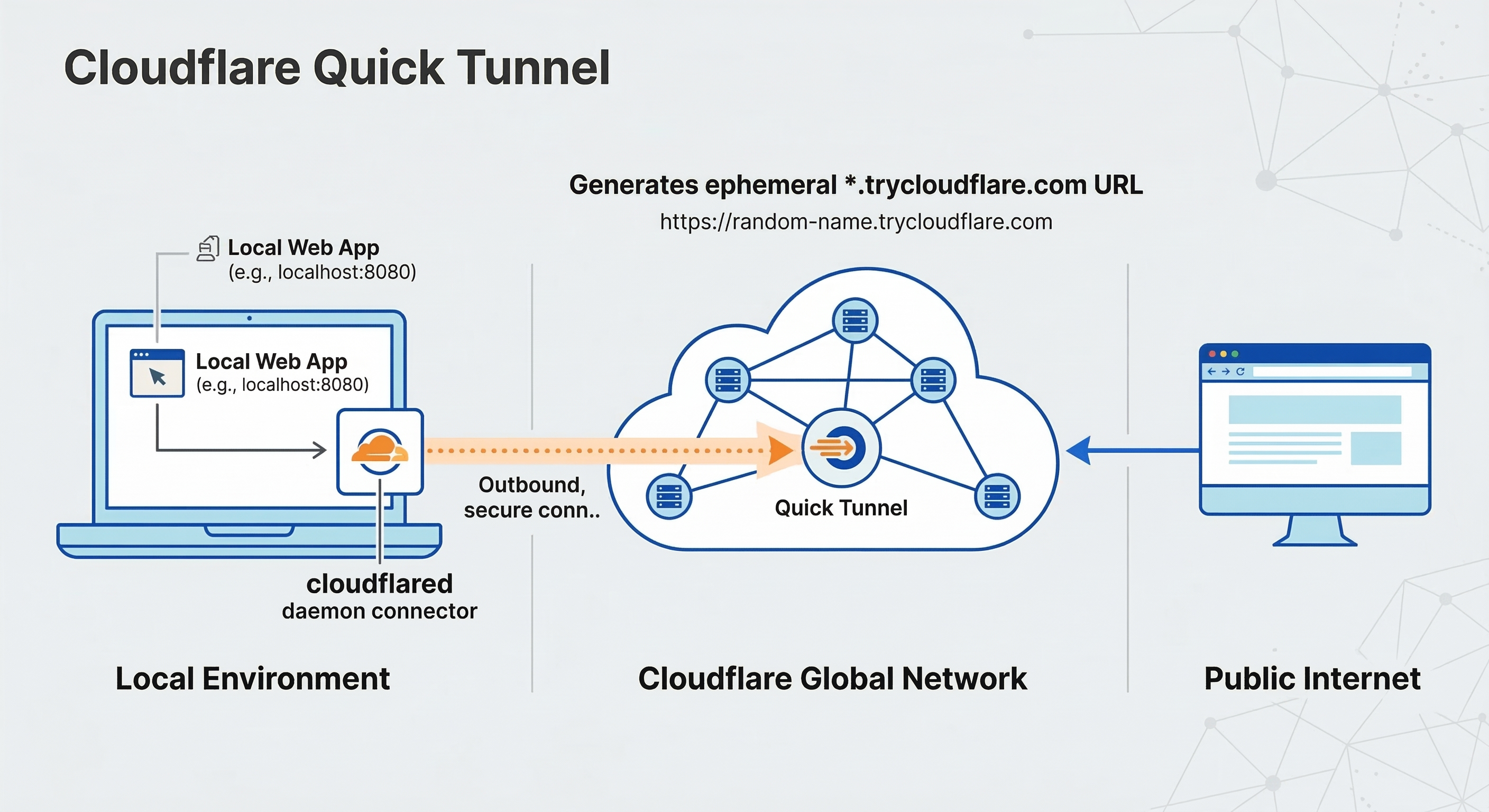
How does this work without touching your router settings? This diagram illustrates the flow:
The cloudflared agent running on your machine establishes an outbound connection to the Cloudflare global network. When a user tries to access your temporary trycloudflare.com URL, they hit the Cloudflare edge. Cloudflare then routes that traffic through the existing secure connection directly to your local service. Because the connection is outbound from your machine, you don’t need to open any inbound ports on your router or firewall.
Key Security and Usage Considerations
While Quick Tunnels are incredibly convenient, it's important to understand how they differ from fully managed, named Cloudflare Tunnels:
- Ephemeral URLs: The
trycloudflare.comURL is temporary. Every time you stop and restart thecloudflaredcommand, you will get a completely new and random URL. This makes it perfect for quick demos, but unsuitable for production or permanent remote access. - Public Access: By default, anyone who guesses or acquires your unique
trycloudflare.comURL can access your local service. There is no built-in authentication for Quick Tunnels. Do not share sensitive data using this method without adding your own authentication to the local application. - No Dashboard Visibility: Quick Tunnels are handled automatically. They do not appear in your Cloudflare dashboard, and you cannot apply Cloudflare Access policies or other Zero Trust features to them.
Summary
Cloudflare Quick Tunnels are an invaluable tool for developers needing to share local progress instantly. If you need a persistent URL, integration with the Cloudflare dashboard, or advanced Access/Security policies, you should upgrade to a Named Tunnel (which does require a custom domain on Cloudflare). But for everything else, Quick Tunnels are the fastest way to get your localhost onto the internet.